Before you automate Facebook posts
To auto post on Facebook, you need three things in place:
- A Facebook Page you manage, not just a personal profile
- Permission to connect that Page through Meta's login flow
- A clear idea of what your business should and should not post about
Facebook automation works best for recurring visibility: business updates, helpful tips, product reminders, local announcements, founder notes, and educational posts. It is less useful for breaking news, crisis updates, or anything that needs a human read before publishing.
How to set up automatic posts on Facebook with LazyPosts
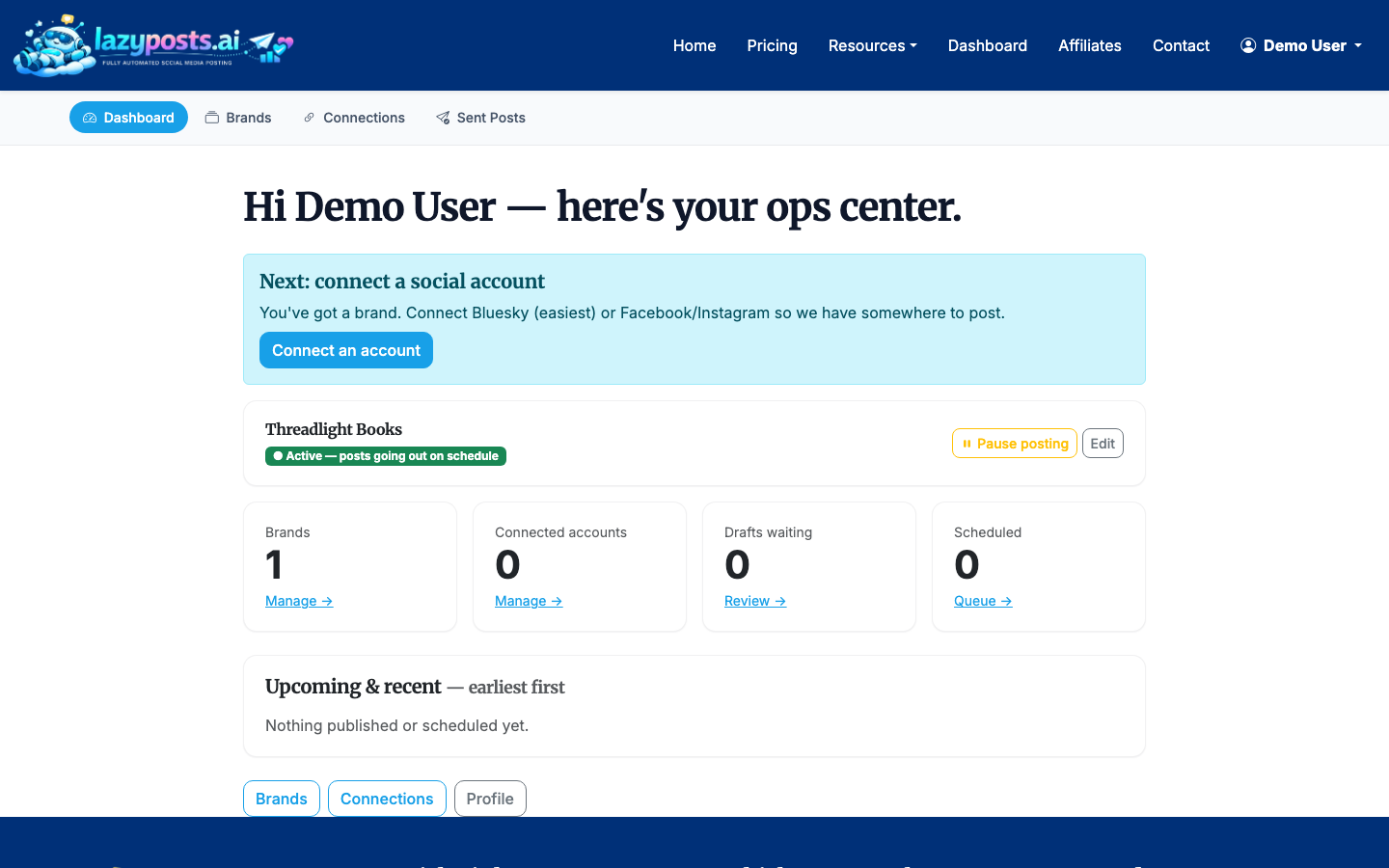
1. Open your LazyPosts dashboard
Log in to LazyPosts and go to the app dashboard. This is where you can manage brand profiles, connected networks, draft queues, and your sent archive.
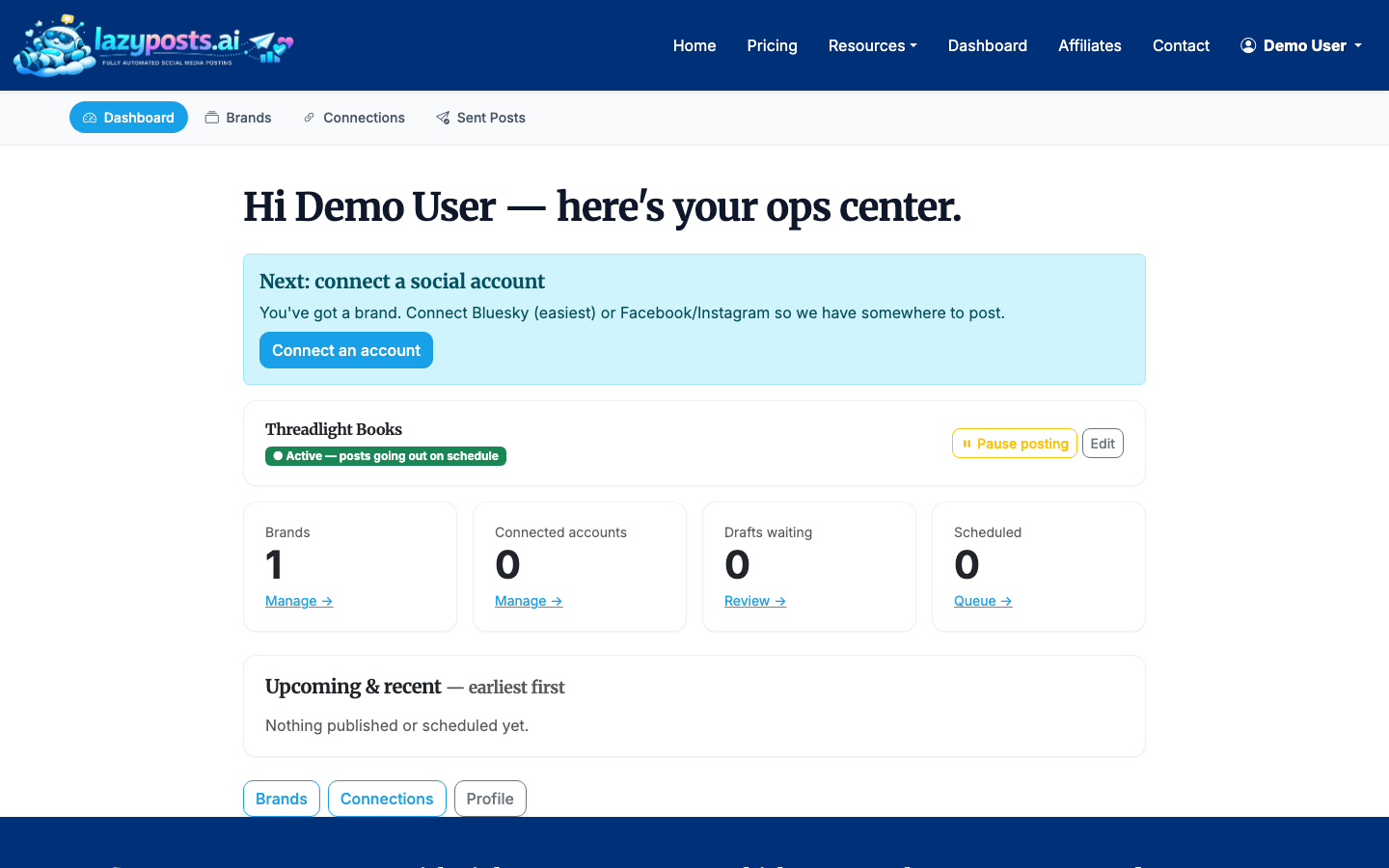
If you manage more than one business, keep each business as a separate brand. That prevents the system from mixing audiences, tone, offers, or topics across unrelated pages.
2. Create or review your brand profile
Before connecting Facebook automation, open your brand profile and fill in the basics: business description, audience, voice, topics, and avoid-list. LazyPosts can also extract useful context from your website, which helps the drafts sound less generic.
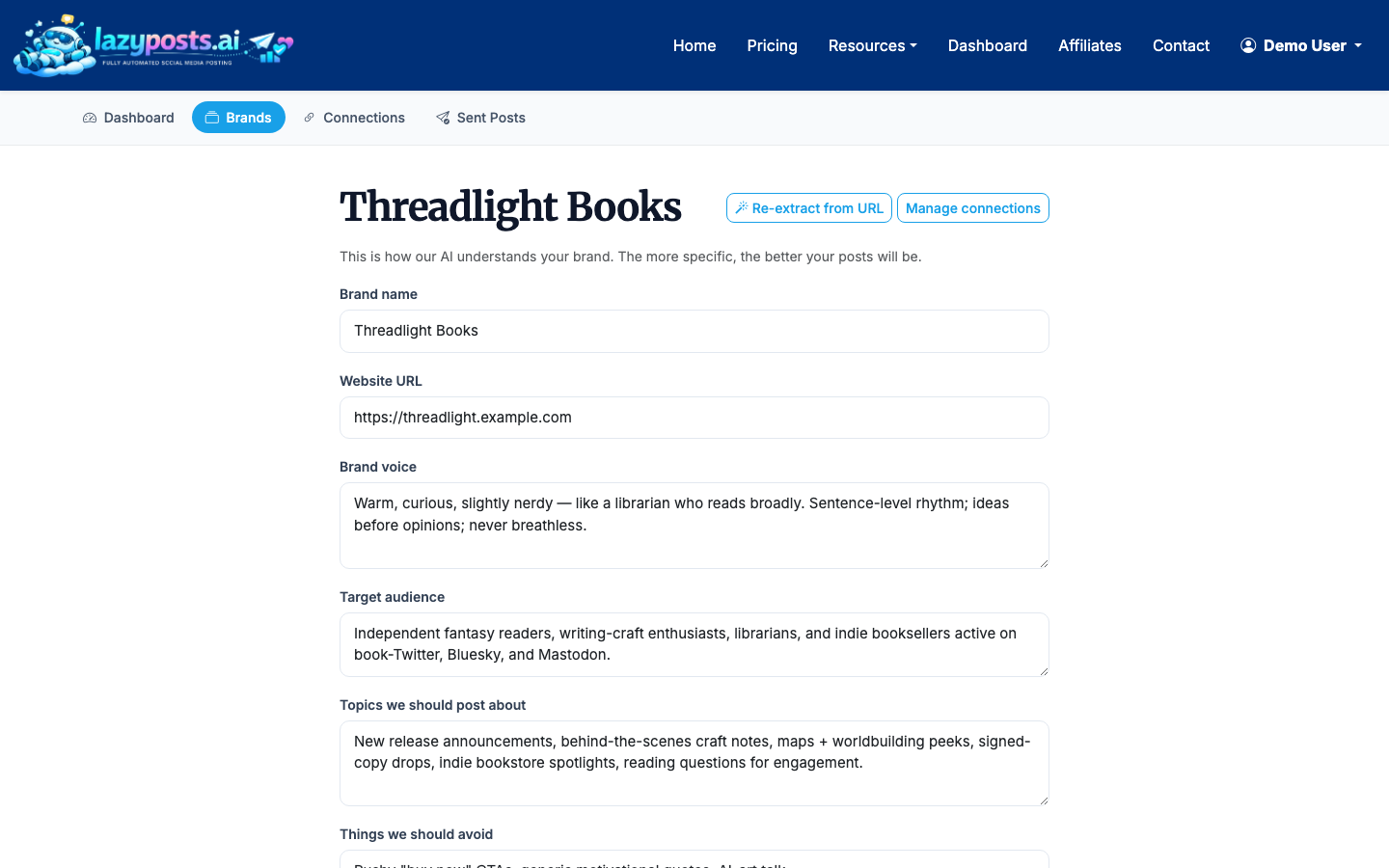
Be specific here. Instead of writing "professional and helpful," describe how you actually talk to customers. For example:
- "Plainspoken, practical, a little dry, no hype"
- "Friendly local expert, short sentences, community-focused"
- "Founder-led, direct, opinionated, no buzzwords"
Your avoid-list matters too. Add topics, claims, phrases, competitors, or offers that should not appear in automated posts.
3. Connect your Facebook account
Go to Connections and choose Facebook. LazyPosts uses Meta's OAuth flow, so you will be asked to sign in, choose the Facebook assets you want to connect, and grant the publishing permissions needed for your Page.
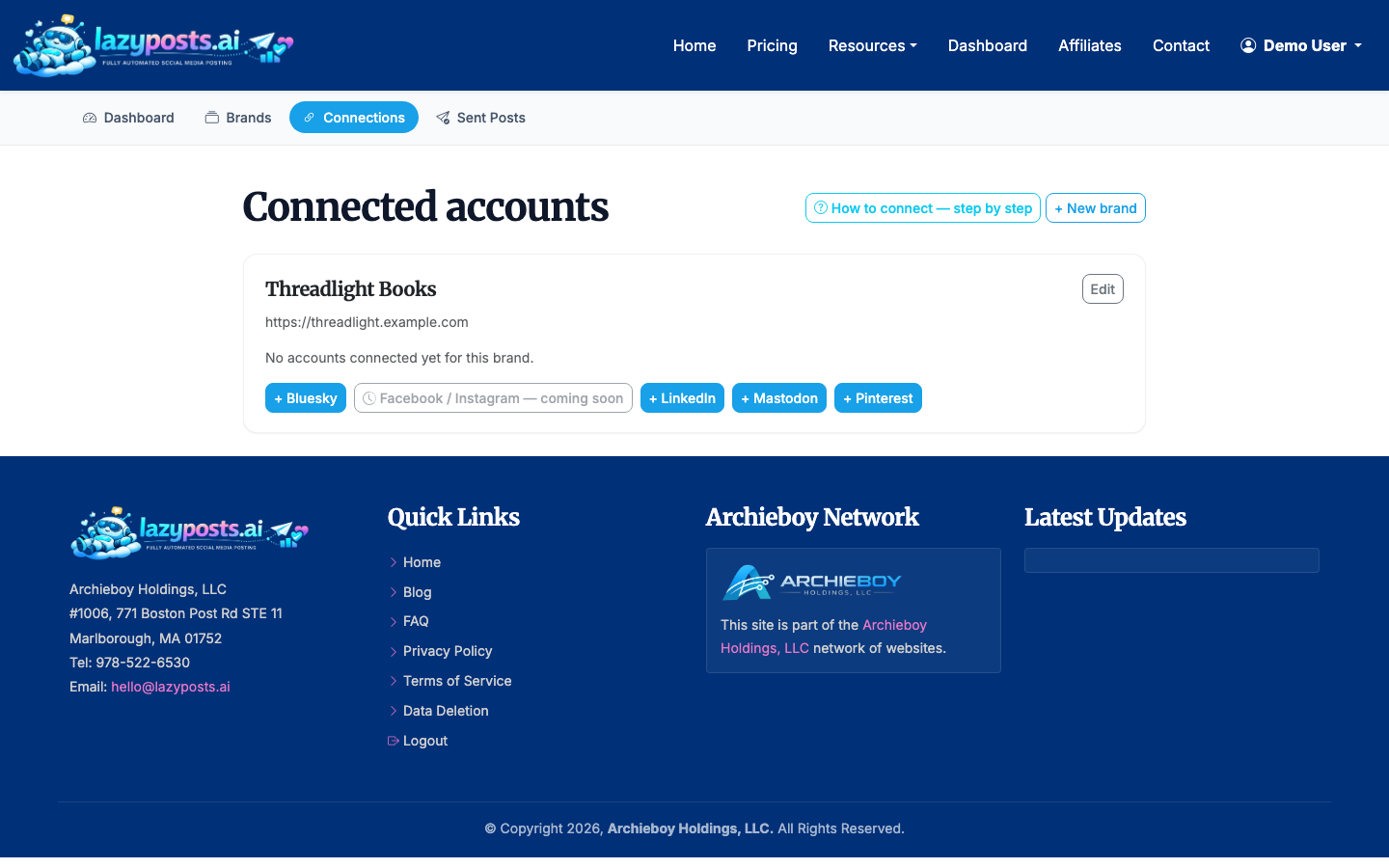
After connection, confirm that the correct Facebook Page appears in your connected networks. If you manage several Pages, double-check this before approving drafts.
4. Check the connection setup guide if Meta asks for permissions
Meta's permissions screens can be confusing because Instagram and Facebook assets often appear in the same flow. If you are unsure what a permission does, open the setup guide from the Connections area.
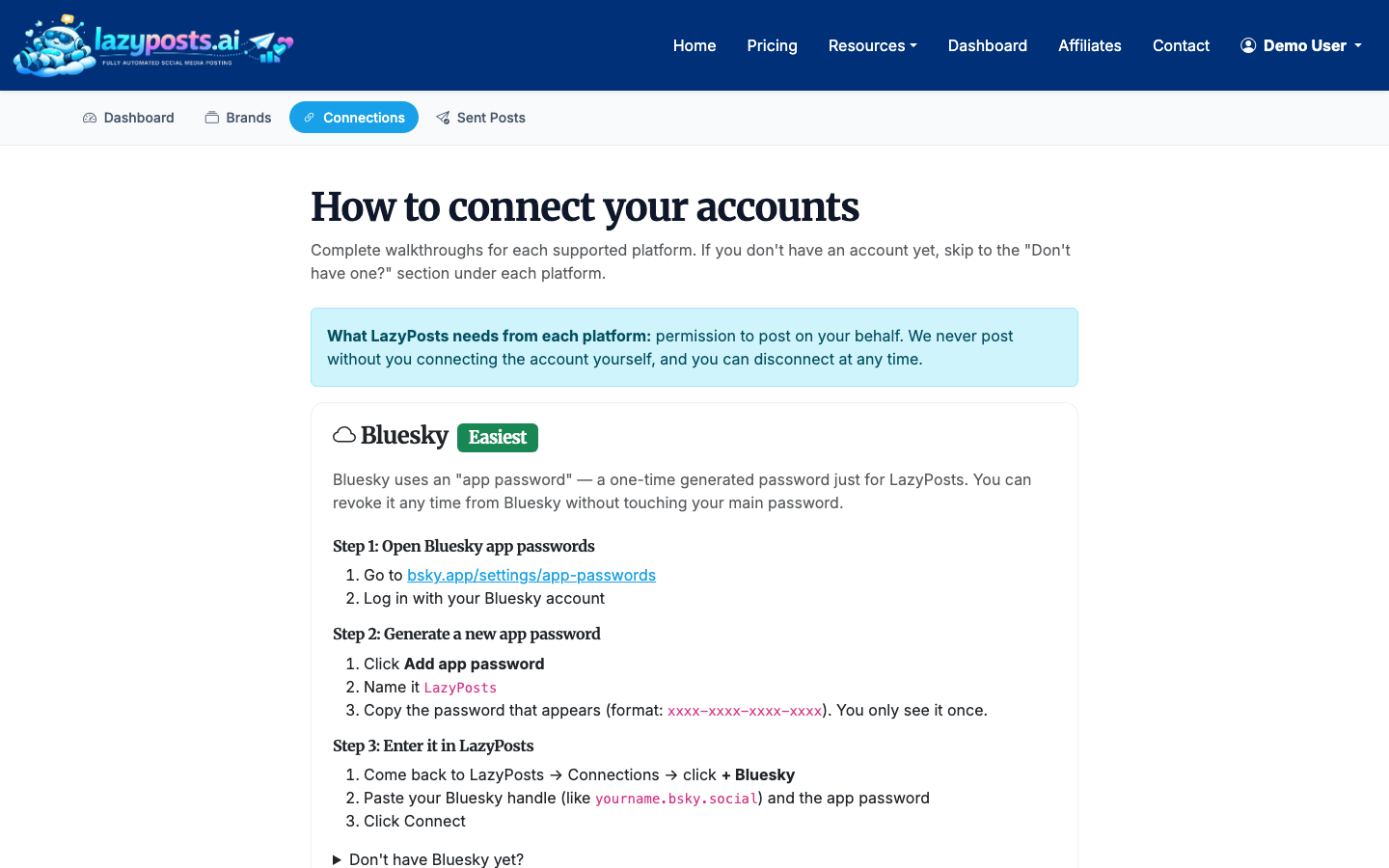
For Facebook auto posting, the important point is that LazyPosts needs permission to publish to the Page you select. It does not mean every connected account will automatically receive every post. You still control which brand and network each draft is for.
5. Review your generated draft queue
Once your brand and Facebook connection are ready, LazyPosts can generate a queue of draft posts based on your voice, topics, and publishing settings. Open Drafts to review what is coming up.
For each post, you can approve, edit, regenerate, or publish. This is the safest way to make automatic posts on Facebook: let the system do the drafting and queue management, but keep an approval gate for anything that represents your business publicly.
When reviewing drafts, look for:
- Accuracy: names, prices, locations, dates, and claims
- Tone: whether it sounds like your business
- Repetition: whether recent posts are too similar
- Timing: whether the post makes sense for the day or season
- Media: whether an image is useful or unnecessary
6. Approve posts or publish manually
If a draft looks good, approve it for publishing. If you want it live immediately, use the publish option. If it is close but not quite right, edit it directly rather than regenerating over and over.
This is the practical answer to how to post automatically on Facebook without giving up control: keep the repetitive work automated, then intervene only where judgment matters.
For businesses that also use Instagram, it may help to keep a separate workflow for visuals. See How to Schedule Instagram Posts if your Facebook posts often need an Instagram version too.
7. Monitor published posts in the sent archive
After posts go out, use the sent archive to confirm what published, which brand it came from, and which network received it.
This archive is useful for spotting patterns. If certain topics perform better, add more like them to your brand profile. If something feels off-brand, update your avoid-list or adjust the voice instructions.
What should you automate on Facebook?
Good candidates for Facebook automation include:
- Weekly business tips
- Service reminders
- Product education
- Behind-the-scenes updates
- Event reminders
- Seasonal promotions
- Customer FAQs
- Short founder or owner notes
Avoid fully automating posts that involve legal claims, medical advice, financial promises, political commentary, crisis response, or sensitive customer situations. Those may still start as drafts, but they should be manually reviewed.
How often should automatic Facebook posts go out?
For most small businesses, 2-4 Facebook posts per week is enough to stay visible without overwhelming followers. Solo founders and consultants may do well with 2 posts per week. Local service businesses, studios, and shops can often support 3-5 if the posts vary by topic.
A simple starting mix:
- 40% helpful advice or education
- 25% proof, examples, or customer questions
- 20% offers, services, or product reminders
- 15% personal, local, or behind-the-scenes updates
The goal is not to fill a calendar for its own sake. It is to make your Page look alive, useful, and current when prospects check it.
Automatic posting vs. scheduling
Scheduling means you write the post and choose a time. Automation means the system helps create, queue, and publish posts based on your brand settings.
Both can work. Scheduling is better when you already know exactly what you want to say. Automation is better when the hard part is consistently coming up with posts in the first place.
LazyPosts is designed for the second case: people who do not want social media to become a weekly project. You connect Facebook once, define the brand, and use approvals to keep control without starting from a blank page every time.
If short-form video is part of your plan, keep that workflow separate because Reels have different creative constraints. Start with How to Schedule Reels on Instagram for that side of the calendar.
