The Short Answer
If you are asking how do i schedule instagram posts, the simplest answer is: create the post, choose a future date and time, and schedule it instead of publishing immediately. Instagram's native scheduler works for many professional accounts, and Meta Business Suite is useful if you already manage Instagram through Meta.
LazyPosts is different. Instead of only giving you a calendar, it helps create the queue from your brand profile, voice, topics, and approval settings. That makes it a better fit if your real problem is not just timing posts, but having posts ready in the first place.
Option 1: Schedule Directly in Instagram
This is best when you already have a finished post and only need to set it for later.
- Open Instagram and start creating a feed post as usual.
- Add your image or video, caption, tags, and location.
- Before publishing, open the post's advanced settings or scheduling option.
- Turn on scheduling, choose the date and time, then confirm.
- Review the scheduled post from Instagram's scheduled content area.
This answers questions like how do i schedule a post on instagram or how do you schedule an instagram post when you only need a one-off delayed post.
The tradeoff: you still have to write every caption, choose every image, and remember what should go out next. Native scheduling is a timer, not a content system.
Option 2: Use Meta Business Suite
Meta Business Suite is useful if you manage Instagram and Facebook together. It lets you create content, select the Instagram account, and schedule it for a future time from a desktop workflow.
This can be a good fit if you are also working through Facebook Pages, ads, or Meta permissions. If your goal is cross-posting, you may also want to read How to Automatically Post from Facebook to Instagram or How to Automatically Post from Instagram to Facebook.
The tradeoff: Meta Business Suite still expects you to plan and create the posts yourself. For some businesses, that is fine. For solo founders and small teams, that is often the part that falls apart.
Option 3: Schedule Instagram Posts with LazyPosts
Use LazyPosts when you want Instagram posts drafted, queued, optionally approved, and published without building every post manually.
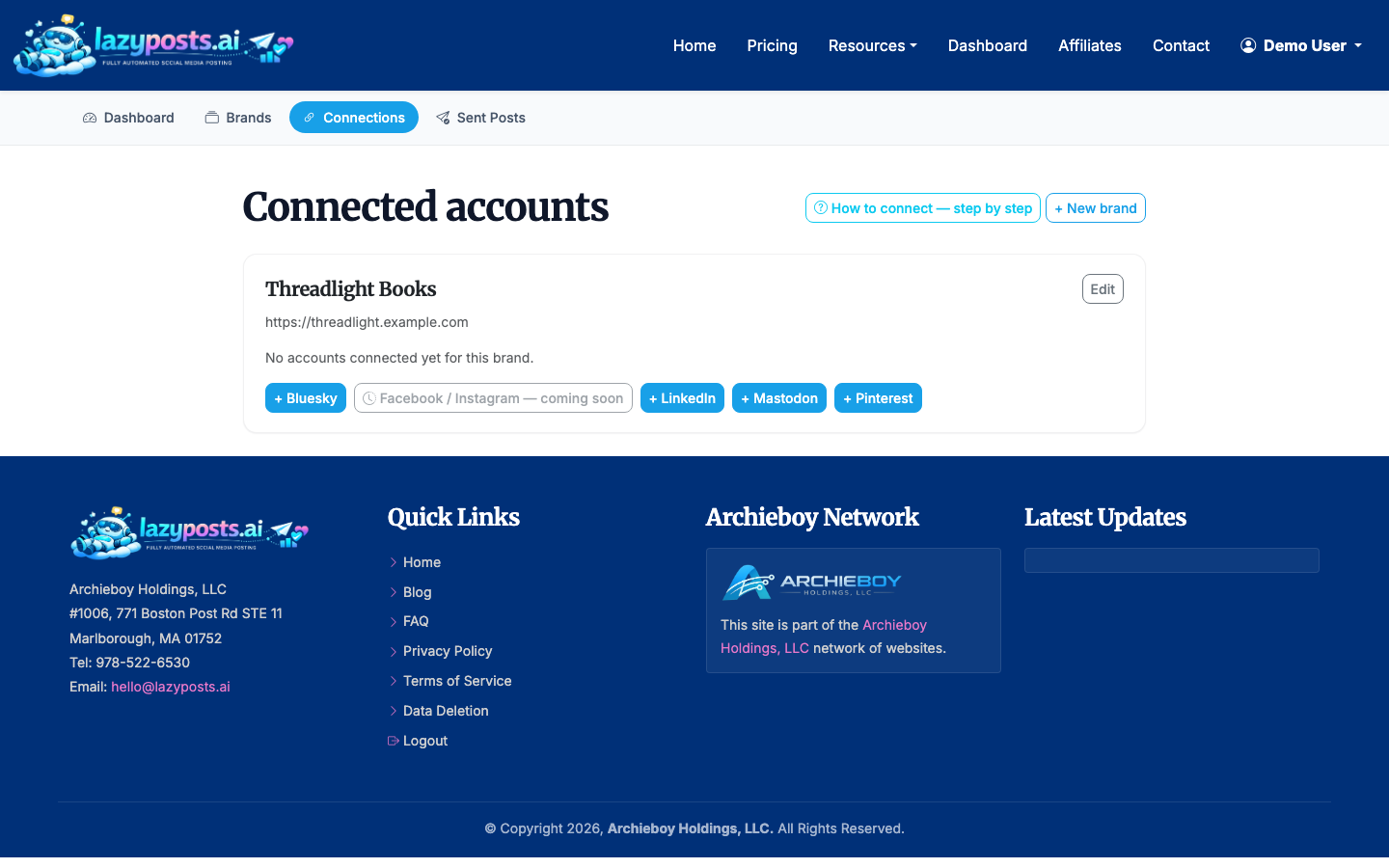
1. Connect your Instagram account
Go to the connections area and connect Instagram through Meta. LazyPosts uses OAuth so you do not need to share your Instagram password. You can also connect other networks if you want the same brand voice across LinkedIn, Facebook, Bluesky, or Pinterest.
2. Set up your brand profile
Open your brand profile and add the details LazyPosts should use when drafting posts: your website, audience, topics, tone, and avoid-list. The avoid-list matters because it prevents repeated phrases, off-brand claims, or topics you do not want published.
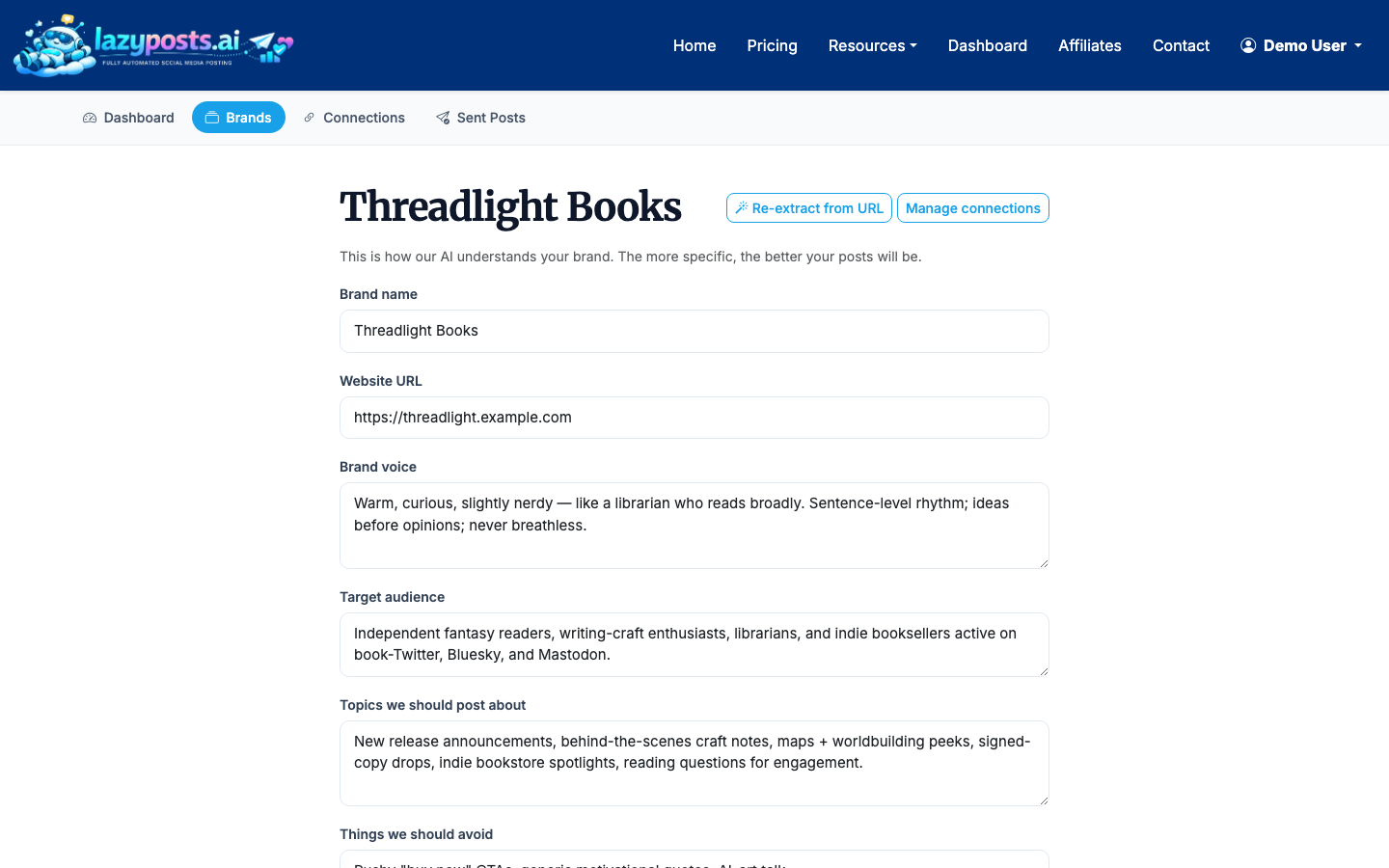
For example, a consultant might tell LazyPosts to sound practical and direct, write for operations leaders, focus on workflow bottlenecks, and avoid hype about passive income. A local service business might emphasize trust, response time, seasonal reminders, and neighborhood relevance.
3. Review the generated draft queue
LazyPosts creates a queue of upcoming posts based on your brand inputs. In the drafts area, review each Instagram post before it goes live. You can approve, edit, regenerate, or publish depending on how much control you want.
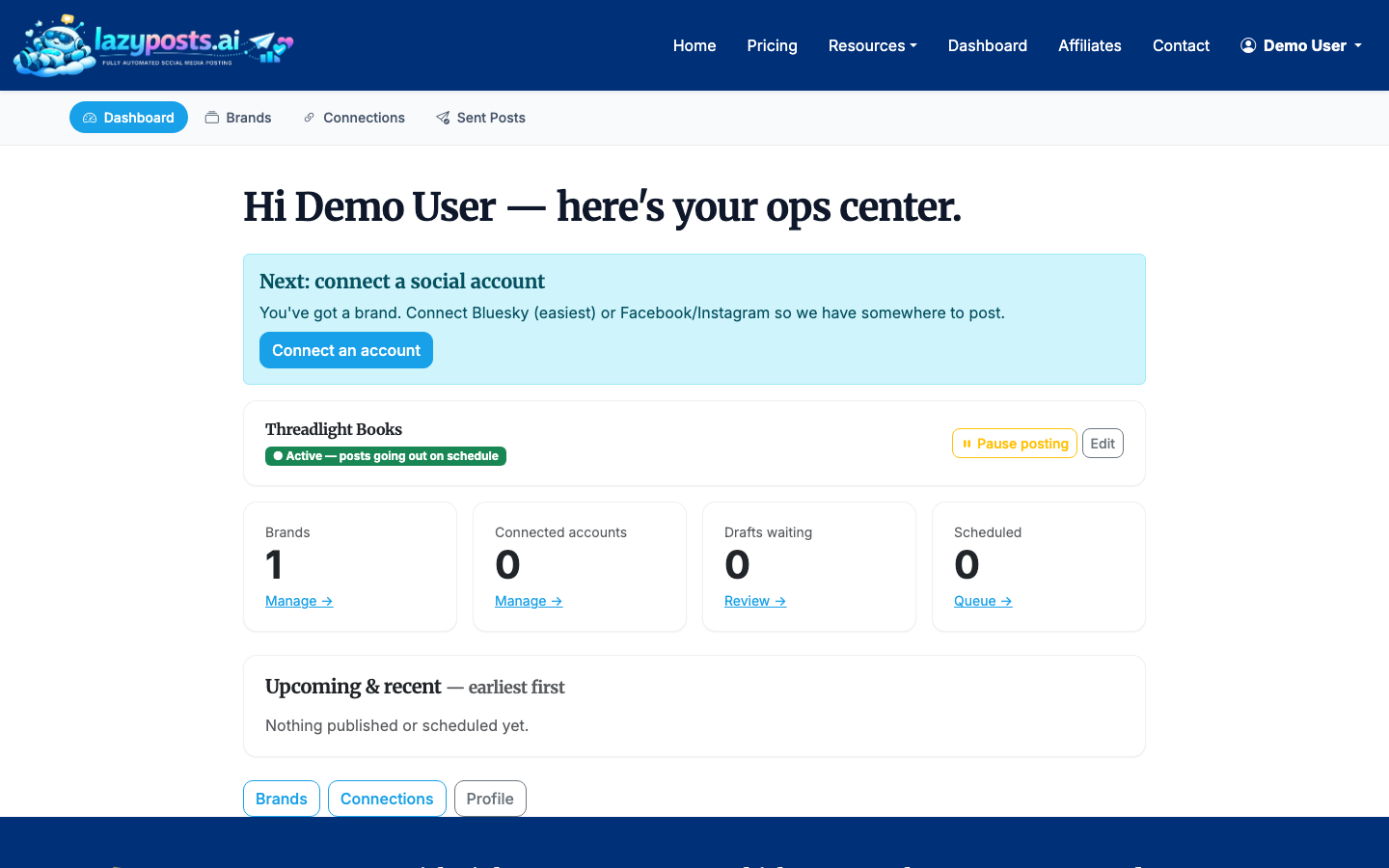
This is the main difference between a scheduler and an AI-managed queue. If you are wondering how do i schedule my instagram posts every week without sitting down to write ten captions, this is the step that saves the time.
4. Edit captions, hashtags, and images before approval
A good scheduled Instagram post should be ready for the platform, not just copied from another network. Keep captions tight, make the first line useful, and check that any generated image matches the actual point of the post.
For most small businesses, a practical weekly rhythm is 3 to 5 Instagram feed posts. That is enough to stay present without turning social media into a second job. If you also publish Reels, see How to Schedule Reels on Instagram.
5. Approve the post and let LazyPosts publish it
Once a draft looks right, approve it. LazyPosts keeps it in the publishing flow and sends it out according to your queue settings. If you need to stop posting for a while, pause the brand instead of deleting drafts.
This is how to do scheduled instagram posts when you want a delayed post, a timed post, and an ongoing content pipeline in the same workflow.
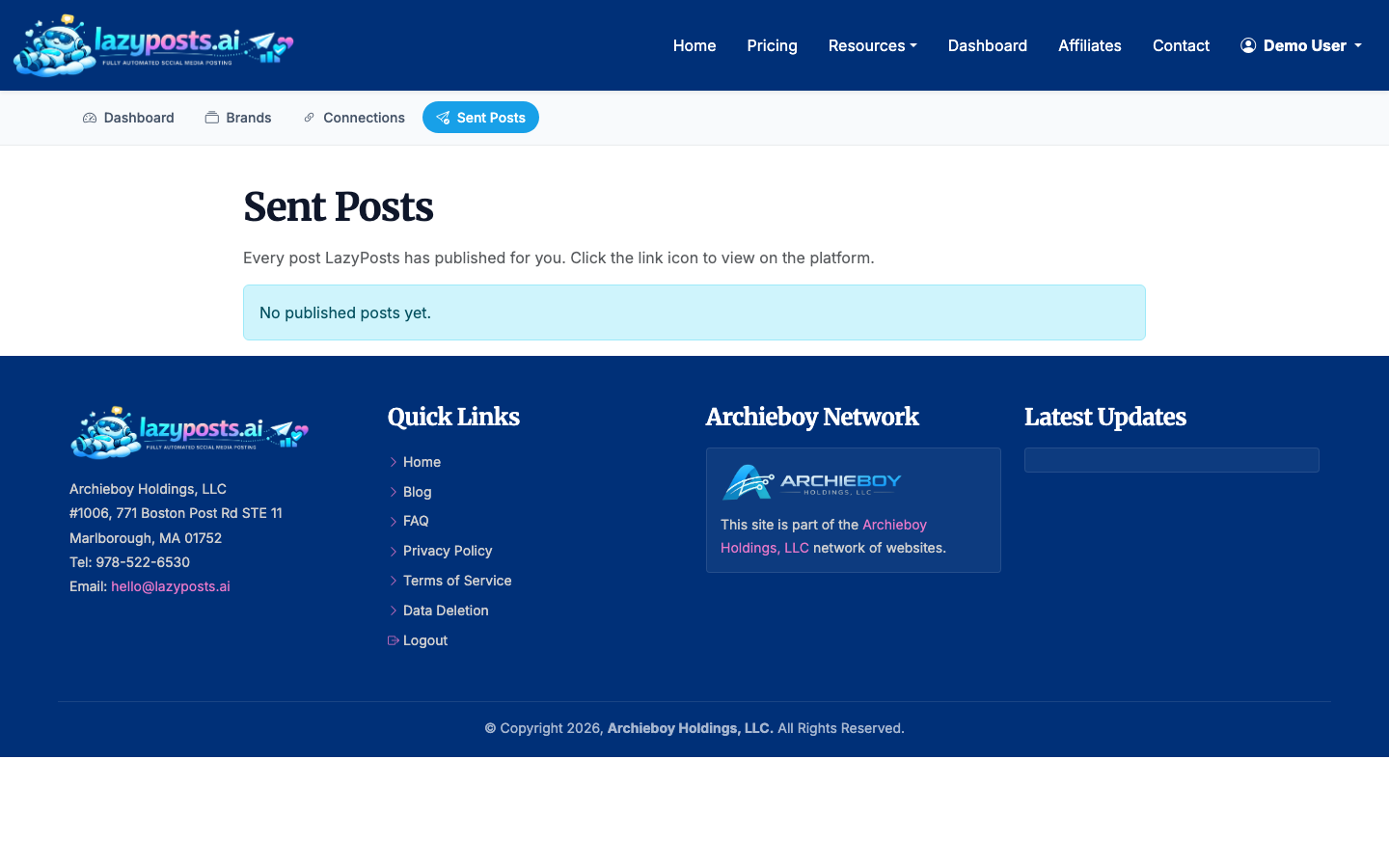
6. Check the sent archive
After posts publish, use the sent archive to confirm what went live by brand and network. This is also useful when you need to see what has already been said before approving similar future drafts.
When Native Scheduling Is Enough
Native Instagram scheduling is enough when:
- You post occasionally.
- You already know exactly what to say.
- You only manage one Instagram account.
- You do not need approval workflows.
- You do not care about other networks.
If that describes you, use Instagram's built-in scheduling or Meta Business Suite. It is free and direct.
When LazyPosts Makes More Sense
LazyPosts makes more sense when:
- You forget to post unless something reminds you.
- You want drafts generated from your business context.
- You manage multiple brands or social profiles.
- You want an approval gate before anything goes live.
- You want Instagram handled alongside LinkedIn, Facebook, Bluesky, or Pinterest.
The honest tradeoff is that automation still needs direction. LazyPosts works best when your brand profile is specific. Vague inputs produce vague posts; clear topics, audience notes, and examples produce a much stronger queue.
Best Practices for Scheduled Instagram Posts
Batch your reviews once or twice a week. Approving posts daily defeats the purpose of scheduling.
Use specific topics instead of broad categories. Write customer objections, seasonal prompts, common mistakes, and short examples into your brand profile.
Keep an approval gate on for new brands. Once the output is consistently on voice, you can decide whether to let more posts publish automatically.
Check the sent archive before regenerating too much. Sometimes the better fix is a small edit, not a brand-new draft.
